Import from EOS
Imports channel data directly from an ETC EOS lighting console. All channels that have cues stored in the console are highlighted in yellow in the channel table. If present in the export file, the import also applies the DMX address and fixture name, and automatically detects moving lights.
The EOS export must be configured as follows:
- Setup → Export → CSV → choose save location
- In the export dialog: activate "Cues", "Values", "Targets", "Channels" and "Fixtures"
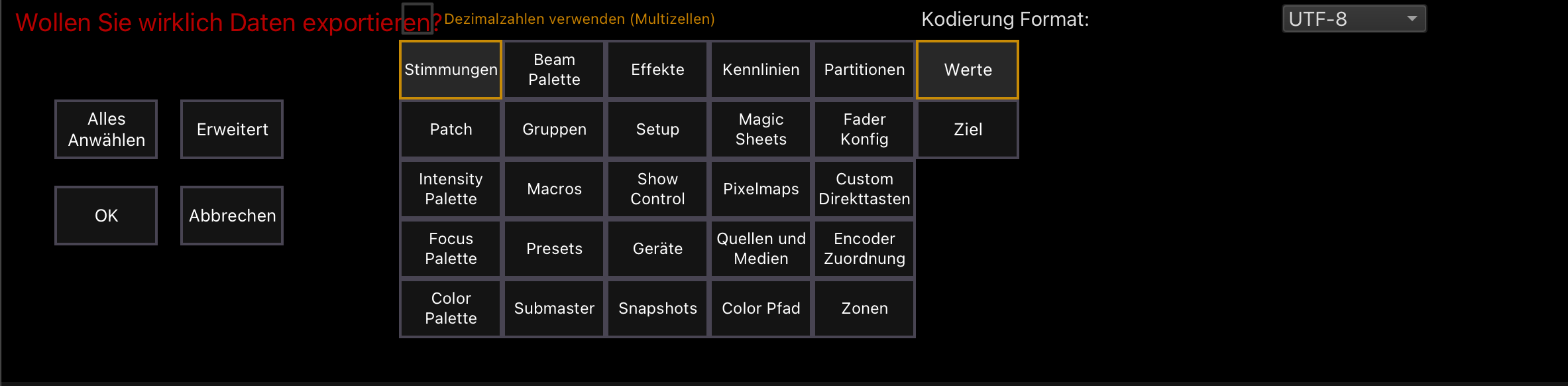
- In LuxStage, click "Import" — a selection dialog explains the difference between "Import from Eos" and "Import CSV" and opens the file dialog after you choose
- Select the exported CSV file
- Review the import in the merge dialog
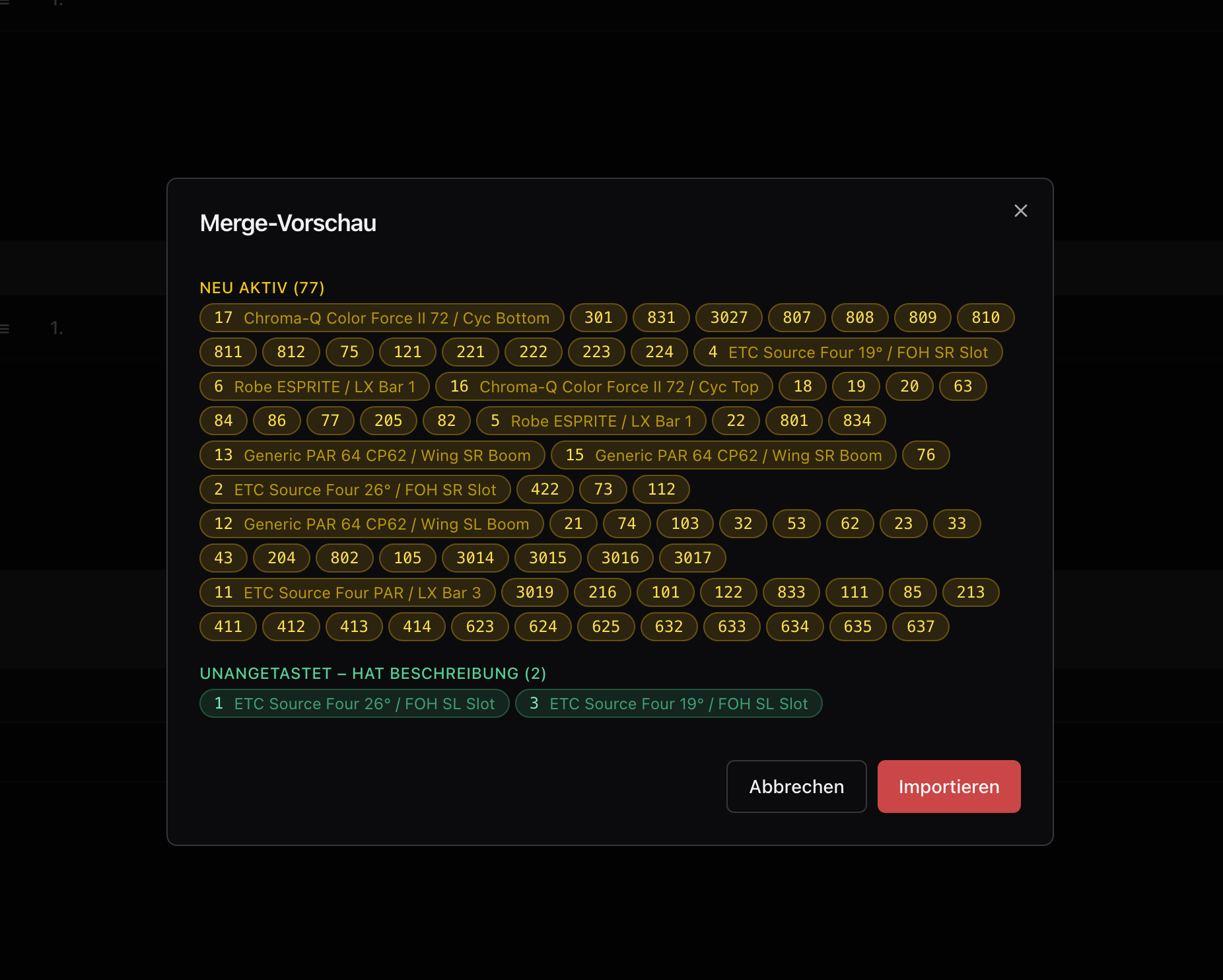
Merge dialog
The merge dialog shows up to five groups:
- Newly active — channels newly used in the console. Each channel number is clickable: clicking excludes the channel from the import (it's shown red and struck through). Excluded channels stay excluded permanently — including on future imports — until clicked again. "Apply all" / "Apply none" select all channels at once.
- No longer active — previously active channels missing from the current export
- Untouched – has description — channels already labelled, which the import does not overwrite
- Address differs — only shown when a channel already has a DMX address that differs from the export. An arrow icon per channel decides whether the old or new address is applied; "Apply all" / "Apply none" affect all differing addresses at once.
- Device differs — works like "Address differs", but for the fixture name
Existing notes are preserved
The import deletes nothing: fixtures, colours, and notes remain in all channels. Missing channels are created, no-longer-active ones are only marked inactive. This also applies when re-importing the same show.
Empty fields are applied automatically
If a channel has no DMX address or fixture yet, the import applies the value from the export automatically — no confirmation needed. Only existing, differing values require a decision in the merge dialog.
If there are no changes compared to the current state, "No changes." appears — the import can still be confirmed.
- Start the import by clicking "Import"
Moving lights
Fixtures with pan/tilt capability (per the export) are treated as moving lights. Newly created or newly active channels without a note automatically receive the note "Moving Light" and turn green instead of yellow — moving lights usually cover many different positions per show, so a fixed position note doesn't make sense for them.
All remaining yellow-highlighted channels can now be labelled with notes, colour codes, etc. in the channel table.