
Focus (iOS)
The Focus tab is the central focusing view of the show. It displays all channels of the production in a list, grouped by positions (e.g. "FOH SL Slot").
Channel display
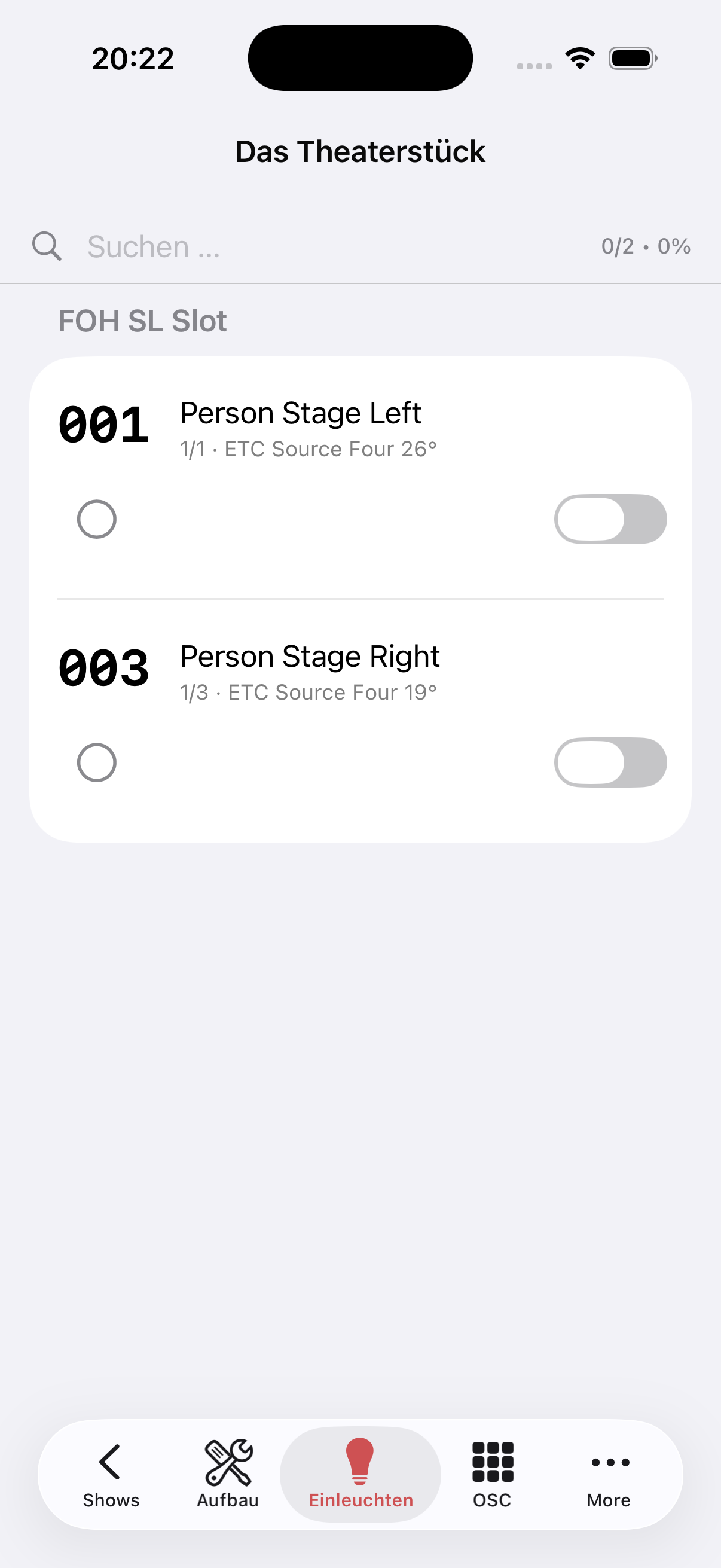
Each channel is displayed as a card with the following elements:
| Element | Meaning |
|---|---|
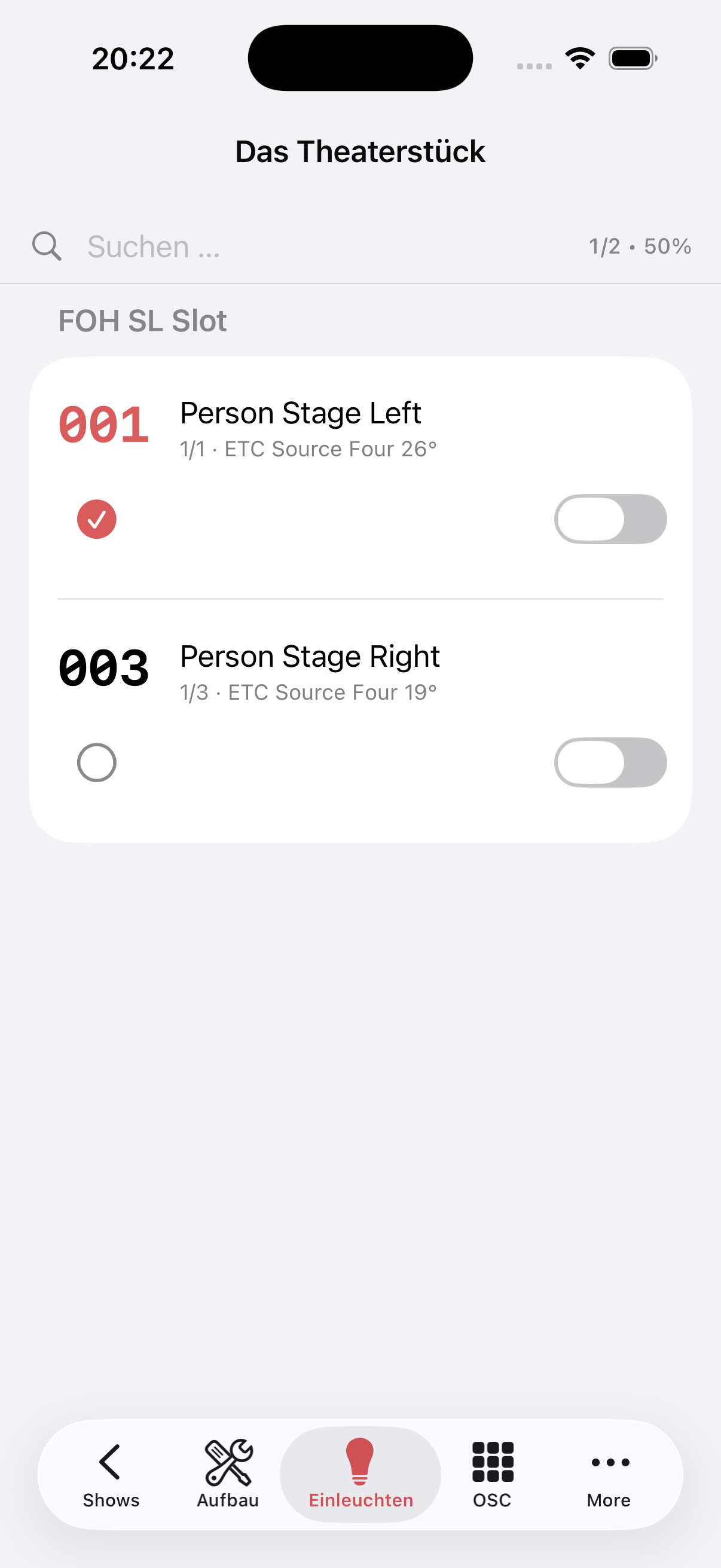
Large channel number (e.g. 001) | Turns red once the channel is marked as focused |
| Name and fixture | e.g. "Person Stage Left · 1/1 · ETC Source Four 26°" |
| Focus circle (left) | Tap → mark channel as focused (red checkmark) |
| OSC toggle (right) | Switch channel to Full via OSC; active = green toggle, card highlighted in pink |
Progress
The status in the top right shows how many channels have already been focused, e.g. 64 · 50%.
Search
The search field at the top filters the channel list in real time by name, fixture or note.
Workflow: focusing fixtures
- Find the channel in the list by searching or scrolling
- Switch toggle on → the app sends @ Full to the EOS console (card is highlighted in colour)
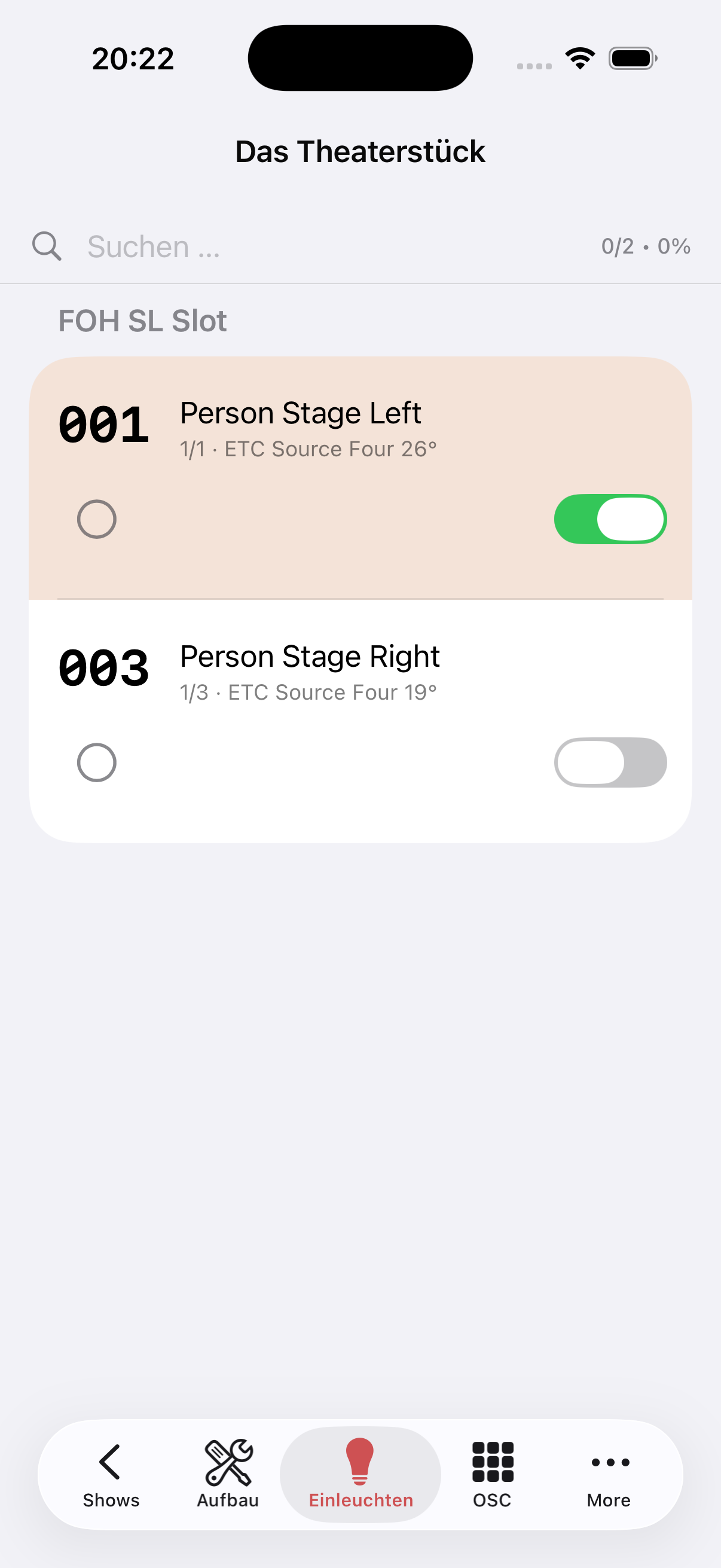
- Physically focus the fixture
- Tap checkmark → channel is marked as done (red checkmark, number turns red) and the fixture is switched off via the EOS console. Alternatively, without marking the fixture as done: switch toggle off
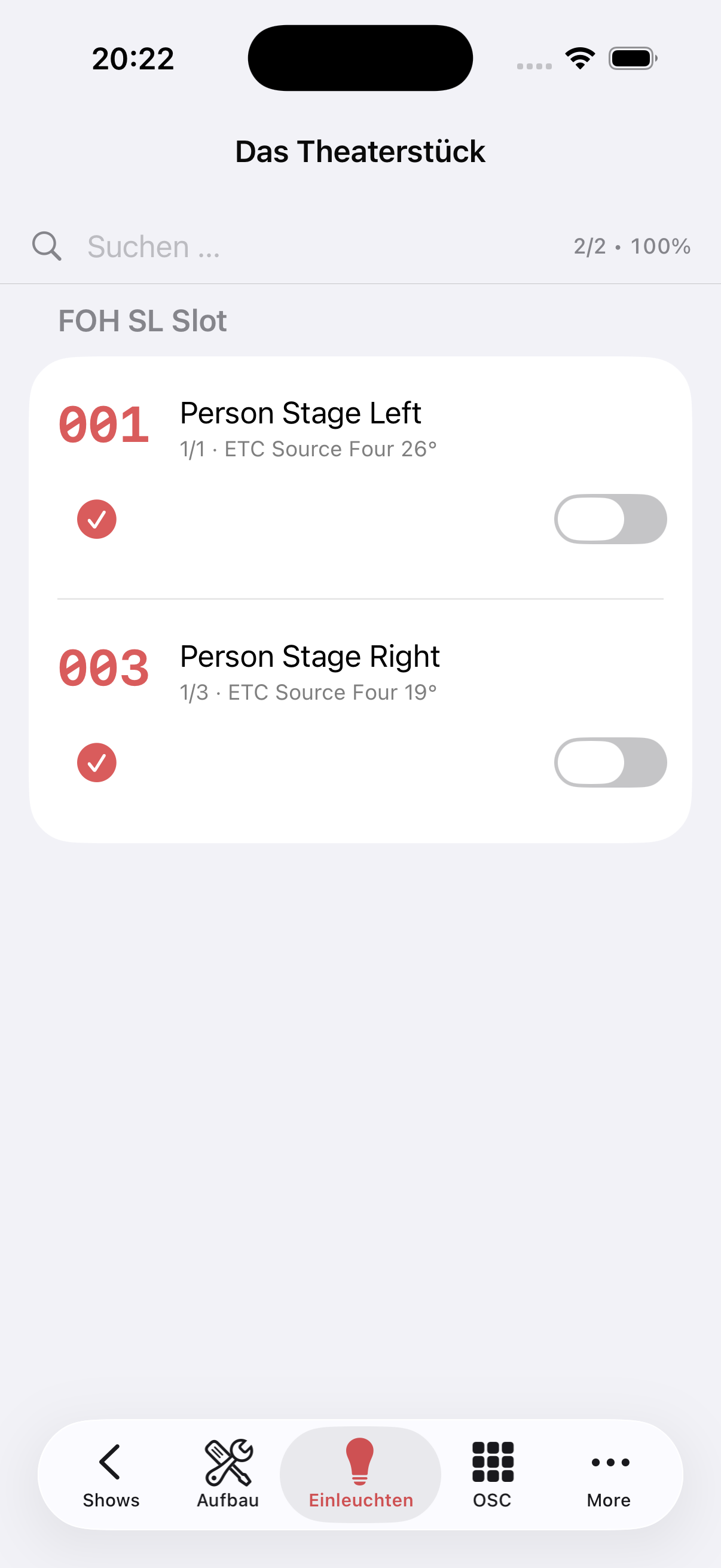
- → continue to the next channel
Photos during focusing
Photos assigned to the channel are directly accessible in the list — ideal for comparing the focus position.
Editing
The tab is now called Channel list. The With note / All switch shows only channels with a note, or all channels. Long-press a channel to edit it. See Editing in the apps.