
OSC (iOS)
The OSC tab is the direct remote control of the EOS lighting console over the network. It is available both within a show and globally (without an open show).
Venue selection
A dropdown in the top left shows the currently active venue. Tapping it opens the list of all venues from the server — the active one is marked with a checkmark. IP addresses are managed in the WebApp; the EOS User ID is set in Settings.
The connection belongs to the whole app: switching tabs does not disconnect it, it survives short background periods and reconnects automatically after longer ones. The connection status appears as a green dot with "Connected · User 1" once the connection to EOS is established. The EOS user can be set in Settings.
Console requirement
OSC RX and OSC TX must be enabled on the console (Setup → System → Show Control → OSC). Otherwise EOS accepts the connection and closes it immediately. The app then shows "Console rejects OSC" instead of "Connected".
Sub-views
The four sub-views are switched via the segment control at the top: Numpad, Playback, Fader, ML.
Numpad
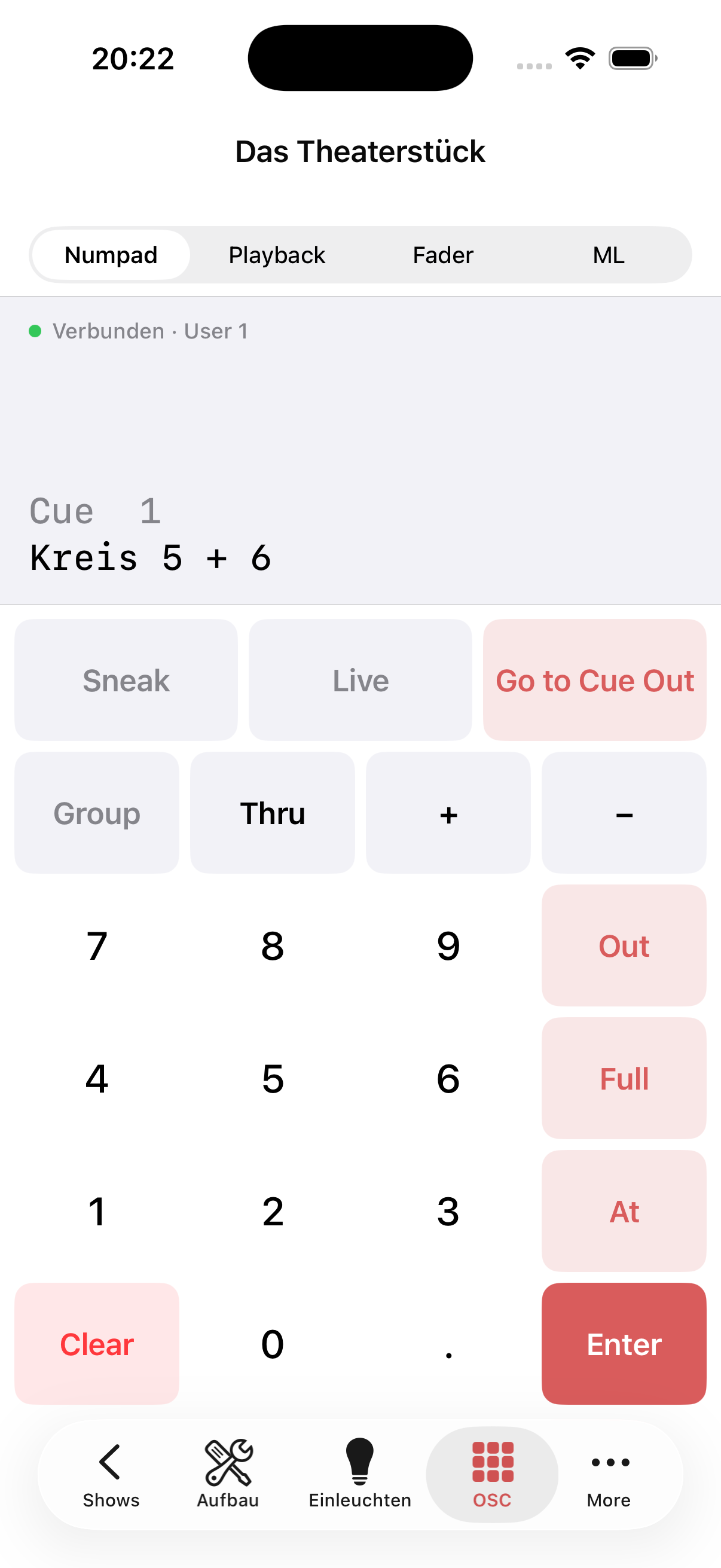
The classic EOS numpad input. The command line entered is displayed above the numpad; recently sent commands appear as a history below.
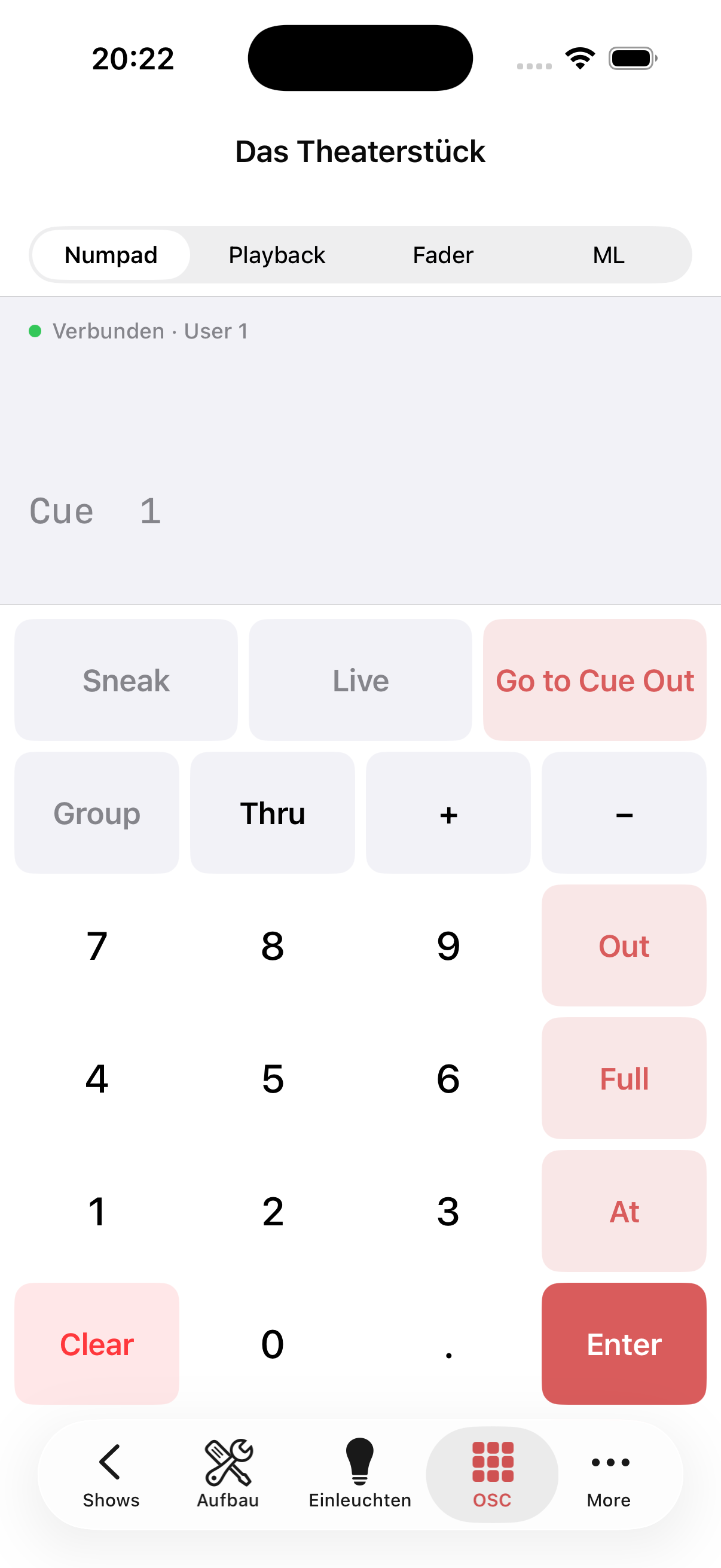
| Key | Function |
|---|---|
| 0–9, . | Digit input |
| Thru | Select range (e.g. 5 Thru 10) |
| +, – | Add / subtract channels |
| Group | Address a group |
| At | Set intensity value |
| Full | Intensity to 100% |
| Out | Intensity to 0% |
| Clear | Clear input |
| Enter | Send command |
| Sneak | Sneak function |
| Live | Live view |
| Go to Cue Out | Jump directly to Cue Out |
Example: 5 + 6 At Full Enter → Channels 5 and 6 to 100%
Playback
The Playback view shows the live state of EOS and provides the most important playback buttons.
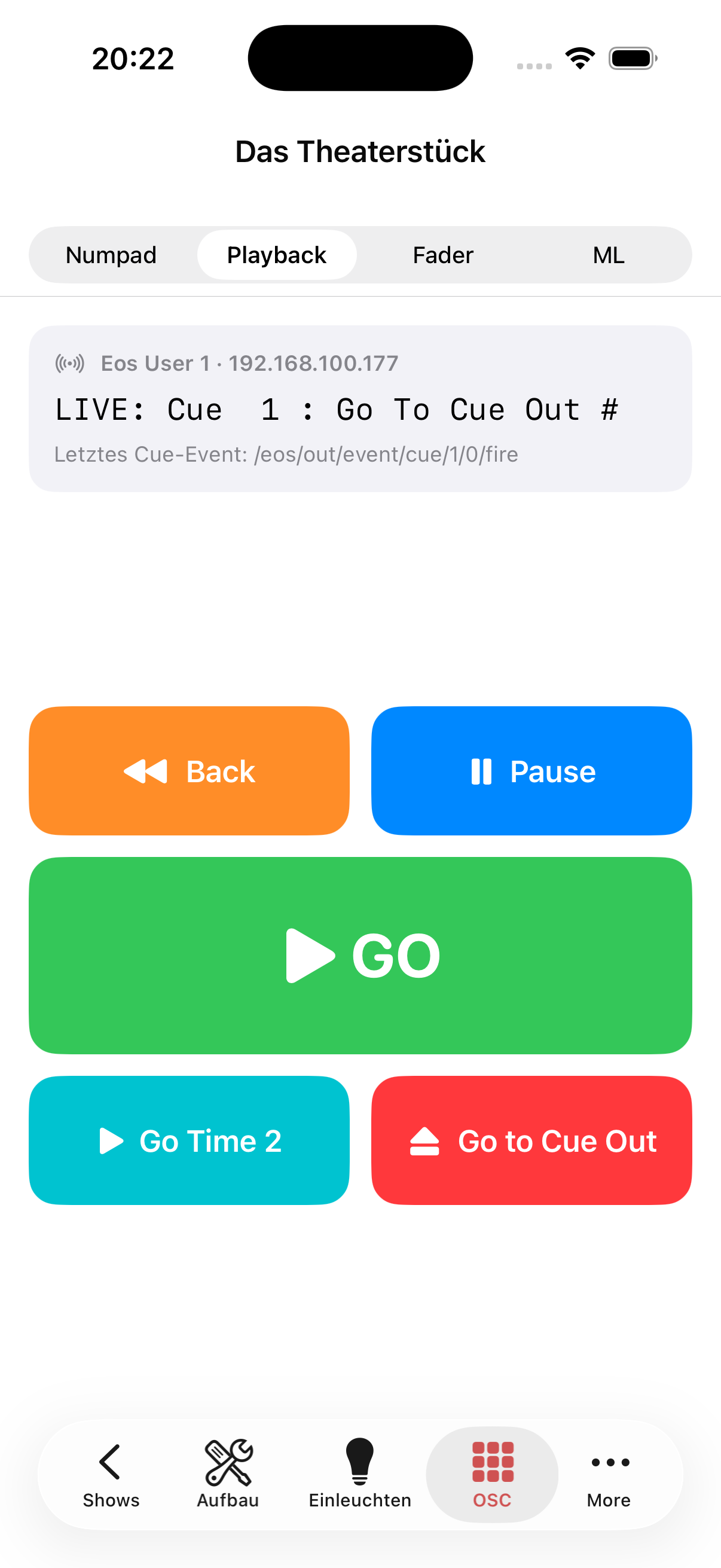
At the top, the EOS address, user and currently active cue (LIVE: Cue 1) are shown, with the most recently triggered cue event below.
| Button | Colour | Function |
|---|---|---|
| Back | Orange | One cue back |
| Pause | Blue | Pause playback |
| GO | Green | Start next cue |
| Go Time Disable | Teal | GO without cue time (Shift+GO) |
| Go to Cue Out | Red | Jump directly to Cue Out |
Fader
The Fader view provides up to five fader banks (Bank 1–5). Each bank shows a list of sub-masters:
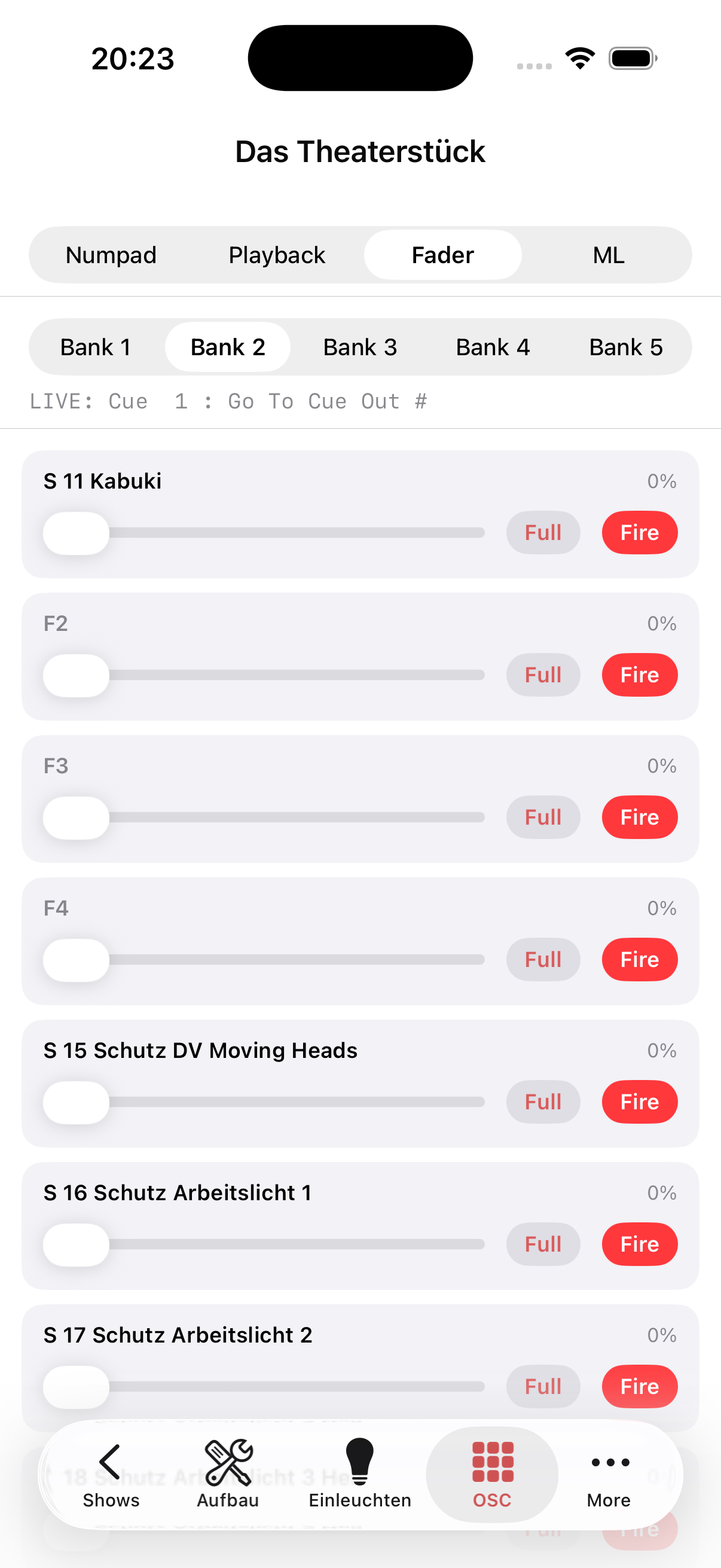
| Element | Function |
|---|---|
| Name | Sub-master name (e.g. "S 11 Kabuki") |
| Slider | Continuous intensity 0–100% |
| Full | Set fader immediately to 100% |
| Fire | Trigger sub-master |
ML (Moving Light)
The ML view controls the parameters of the moving light currently selected on EOS.
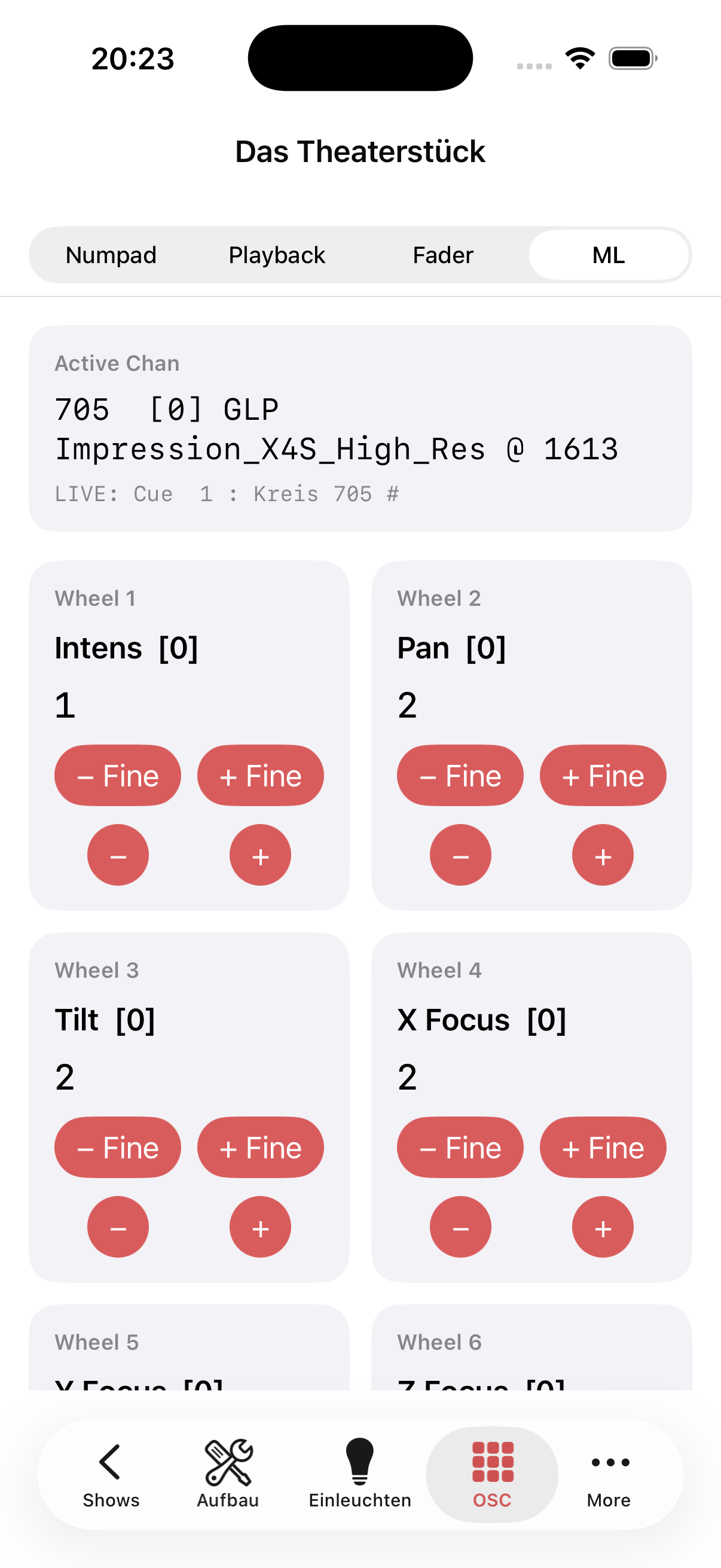
At the top, the Active Chan is shown (e.g. "705 [0] GLP Impression_X4S_High_Res @ 1613") along with the current live cue.
For each parameter wheel, a card with four control buttons appears:
| Button | Step size |
|---|---|
| – Fine | Small negative step |
| + Fine | Small positive step |
| – | Large negative step |
| + | Large positive step |
Typical wheels: Intens, Pan, Tilt, X Focus, Z Focus — depending on the fixture profile.